

Visualizing Node Metadata#
This notebook demonstrates how to include additional columns of node metadata in a single hive plot visualization.
[1]:
import matplotlib.pyplot as plt
from hiveplotlib.datasets import example_hive_plot
from matplotlib.cm import ScalarMappable
from matplotlib.colors import Normalize
The nodes attribute of a hiveplotlib.HivePlot instance holds a DataFrame of node data. This DataFrame will be used as a basis for generating a hive plot. Specifically, we will use these data to choose a partition to assign each node to an axis and a sorting variable that will dictate node placement on each axis.
Once we’ve settled node placement though, what if we have additional columns of data in our node DataFrame? We could always make more hive plots (e.g. use a different column of node data as a sorting variable), but what if we want to see how these additional variables relate to the interactions in our current hive plot?
Hive plots only dictate the placement of nodes, not how we plot each node in its assigned place. This gives us the flexibility to represent additional node data in the same hive plot by plotting each node while varying dimensions like color and size.
We will use the following example to demonstrate flexibility in plotting nodes:
[2]:
hp = example_hive_plot(repeat_axes=True)
[3]:
hp.nodes.data
[3]:
| unique_id | low | med | high | partition_0 | |
|---|---|---|---|---|---|
| 0 | 0 | 6.363247 | 14.795079 | 23.193620 | B |
| 1 | 1 | 2.695169 | 12.321405 | 21.873202 | A |
| 2 | 2 | 0.409326 | 18.010787 | 26.718541 | A |
| 3 | 3 | 0.165111 | 19.226066 | 21.949123 | A |
| 4 | 4 | 8.124570 | 12.658641 | 25.771102 | C |
| ... | ... | ... | ... | ... | ... |
| 95 | 95 | 9.562530 | 15.708242 | 25.857141 | C |
| 96 | 96 | 1.486152 | 10.064025 | 21.225680 | A |
| 97 | 97 | 9.716562 | 17.718766 | 29.328351 | C |
| 98 | 98 | 8.890456 | 19.772874 | 26.833664 | C |
| 99 | 99 | 8.215515 | 15.892802 | 28.229576 | C |
100 rows × 5 columns
Note that here we have three node variables to work with: low, med, and high.
By default, example_hive_plot() is partitioning nodes based on the low values and also sorting each axis based on the low values.
How to Plot Node Metadata#
To plot a column of node metadata in a hive plot, we need only assign that node column name to the plotting keyword argument.
When plotting nodes, the Hiveplotlib node visualization function (for all visualization back ends) first checks the assigned kwarg values against the node columns. If there’s a match, then the node data is used for that kwarg.
Node Color#
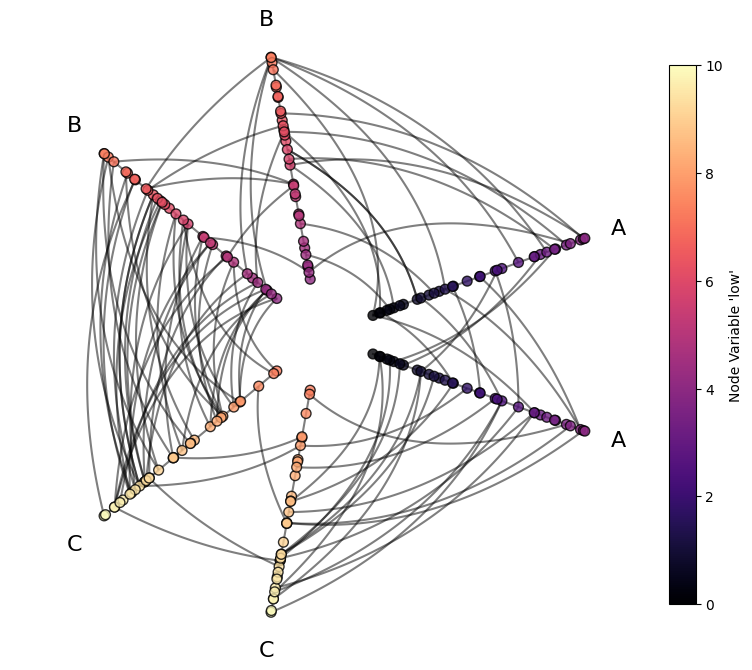
Let’s first follow along with the low-based partition and sorting by also coloring each node based on the low column.
This can be done by assigning the color kwarg ("c" using the matplotlib visualization back end), to the column value low.
Since we’re both partitioning and coloring using the low variable, we will thus see our partition reflected in the node colors visible on each axis.
Since we’re also sorting on low, we will see the node colors increasing as we radiate out along each axis.
[4]:
node_kwargs = {
    "c": "low",  # assign color kwarg to node column name
    "cmap": "magma",
    "s": 50,  # make nodes bigger to see color better
    "vmin": 0,  # fix color range to be consistent among all axes
    "vmax": 10,
    "edgecolor": "black",
}

fig, ax = hp.plot(node_kwargs=node_kwargs)

# add custom colorbar
fig.colorbar(
    ScalarMappable(
        norm=Normalize(
            node_kwargs["vmin"],
            node_kwargs["vmax"],
        ),
        cmap=node_kwargs["cmap"],
    ),
    ax=ax,
    label="Node Variable 'low'",
    shrink=0.7,
)

plt.show()
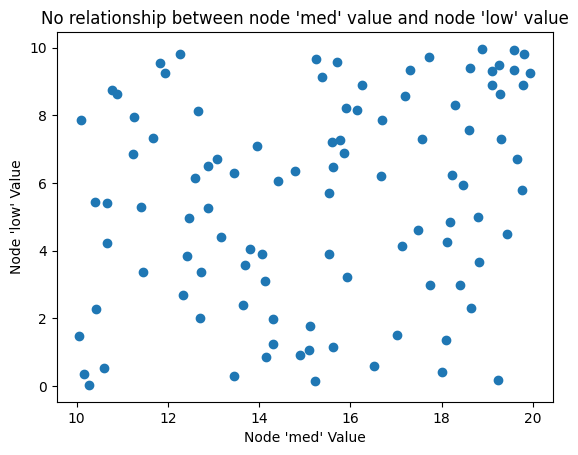
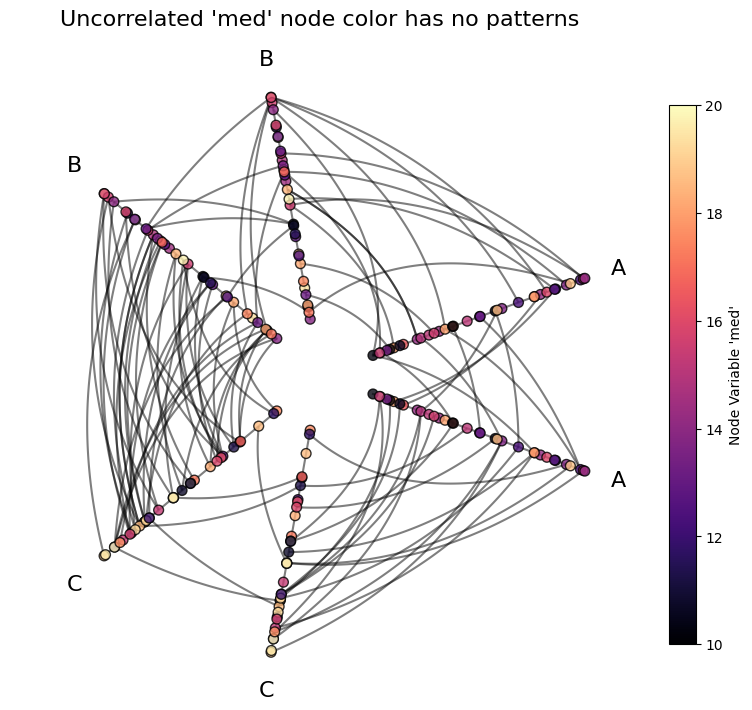
But if we instead choose an uncorrelated variable for the color (e.g. med), then these patterns will disappear.
[5]:
fig, ax = plt.subplots()
ax.scatter(hp.nodes.data.med, hp.nodes.data.low)
ax.set_xlabel("Node 'med' Value")
ax.set_ylabel("Node 'low' Value")
ax.set_title(
    "No relationship between node 'med' value and node 'low' value",
)
plt.show()
[6]:
# switch to using "med"
# make color range higher because med values are higher
node_kwargs = {
    "c": "med",
    "cmap": "magma",
    "s": 50,  # make nodes bigger to see color better
    "vmin": 10,
    "vmax": 20,
    "edgecolor": "black",
}

fig, ax = hp.plot(node_kwargs=node_kwargs)

# add custom colorbar
fig.colorbar(
    ScalarMappable(
        norm=Normalize(
            node_kwargs["vmin"],
            node_kwargs["vmax"],
        ),
        cmap=node_kwargs["cmap"],
    ),
    ax=ax,
    label="Node Variable 'med'",
    shrink=0.7,
)

ax.set_title(
    "Uncorrelated 'med' node color has no patterns",
    size=16,
    y=1.05,
)

plt.show()
Node Size#
We can also use node size to represent node metadata.
[7]:
node_kwargs = {
    "s": "low",  # assign size kwarg to node column name
}

fig, ax = hp.plot(node_kwargs=node_kwargs)
plt.show()
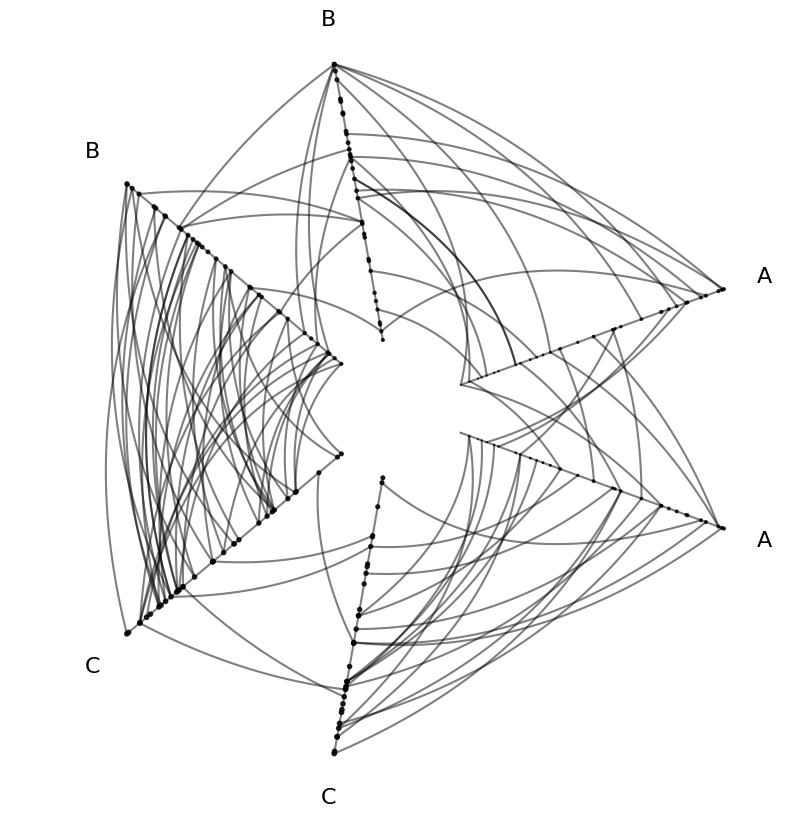
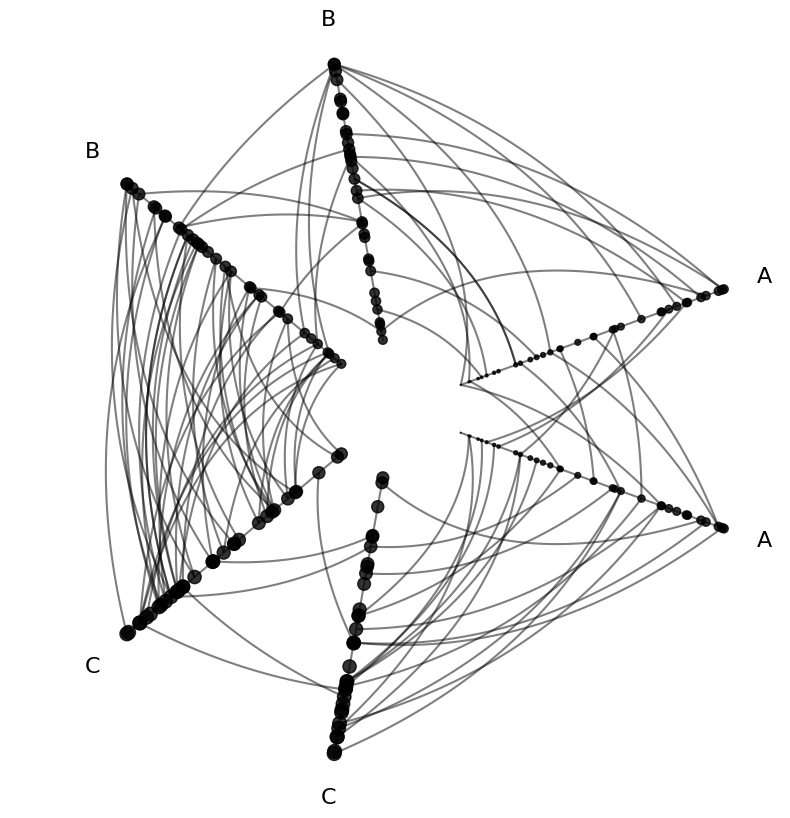
These node sizes are a bit small, which raises the question, how can we manipulate our metadata values to improve our metadata visualization?
Scaling Node Metadata#
Users can create scaled data as needed for plotting through standard DataFrame manipulation (i.e. adding a new column to HivePlot.nodes.data.
Users can scale the new data column however they see fit, linearly or nonlinearly (e.g. log), to create new column(s) of scaled metadata to reference in their plotting.
If creating variables on an existing hive plot, however, be sure to re-run HivePlot.update_partition_data() after, as this will propagate the new node metadata to each hive plot axis for plotting.
[8]:
# nodes were too small, let's scale up 10x
hp.nodes.data["size_10x"] = hp.nodes.data["low"].to_numpy() * 10

# propagate extra node data changes through to data on axes
hp.update_partition_data()

hp.nodes.data
[8]:
| unique_id | low | med | high | partition_0 | size_10x | |
|---|---|---|---|---|---|---|
| 0 | 0 | 6.363247 | 14.795079 | 23.193620 | B | 63.632473 |
| 1 | 1 | 2.695169 | 12.321405 | 21.873202 | A | 26.951693 |
| 2 | 2 | 0.409326 | 18.010787 | 26.718541 | A | 4.093255 |
| 3 | 3 | 0.165111 | 19.226066 | 21.949123 | A | 1.651111 |
| 4 | 4 | 8.124570 | 12.658641 | 25.771102 | C | 81.245697 |
| ... | ... | ... | ... | ... | ... | ... |
| 95 | 95 | 9.562530 | 15.708242 | 25.857141 | C | 95.625297 |
| 96 | 96 | 1.486152 | 10.064025 | 21.225680 | A | 14.861525 |
| 97 | 97 | 9.716562 | 17.718766 | 29.328351 | C | 97.165619 |
| 98 | 98 | 8.890456 | 19.772874 | 26.833664 | C | 88.904562 |
| 99 | 99 | 8.215515 | 15.892802 | 28.229576 | C | 82.155145 |
100 rows × 6 columns
[9]:
node_kwargs = {
    "s": "size_10x",  # use 10x node metadata for size
}

fig, ax = hp.plot(node_kwargs=node_kwargs)
plt.show()
Multiple Node Features#
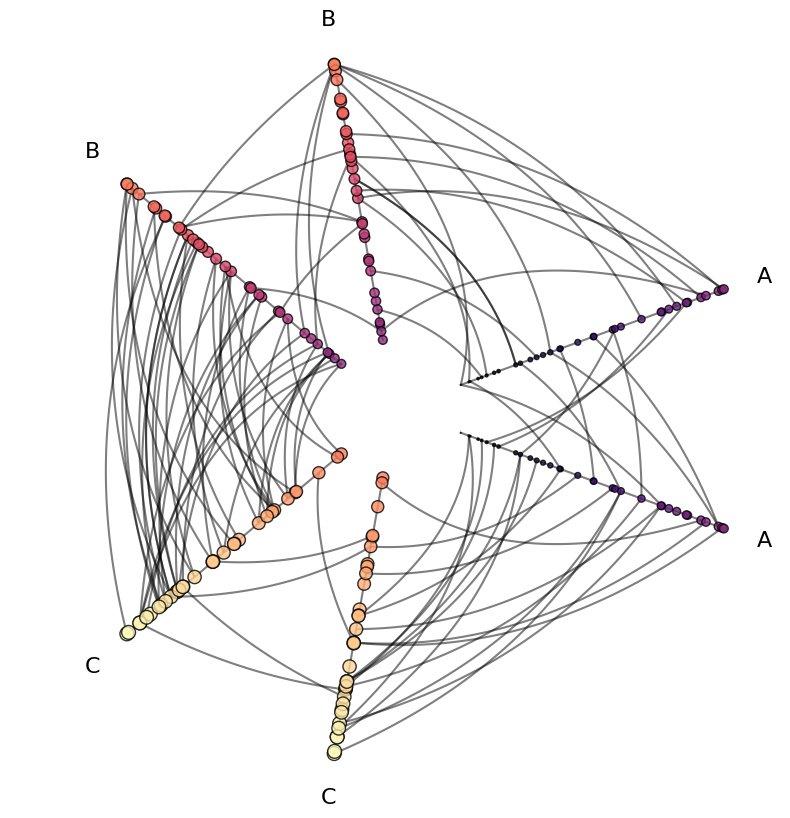
Of course, nothing is stopping us from assigning node metadata to multiple keyword arguments. Below, we use color and size as used in the above examples, but in a single hive plot.
[10]:
node_kwargs = {
    "c": "low",  # node metadata for color
    "s": "size_10x",  # AND node metadata for size
    "cmap": "magma",
    "vmin": 0,
    "vmax": 10,
    "edgecolor": "black",
}

fig, ax = hp.plot(node_kwargs=node_kwargs)
plt.show()
Persisting Node Kwargs for Future Plots#
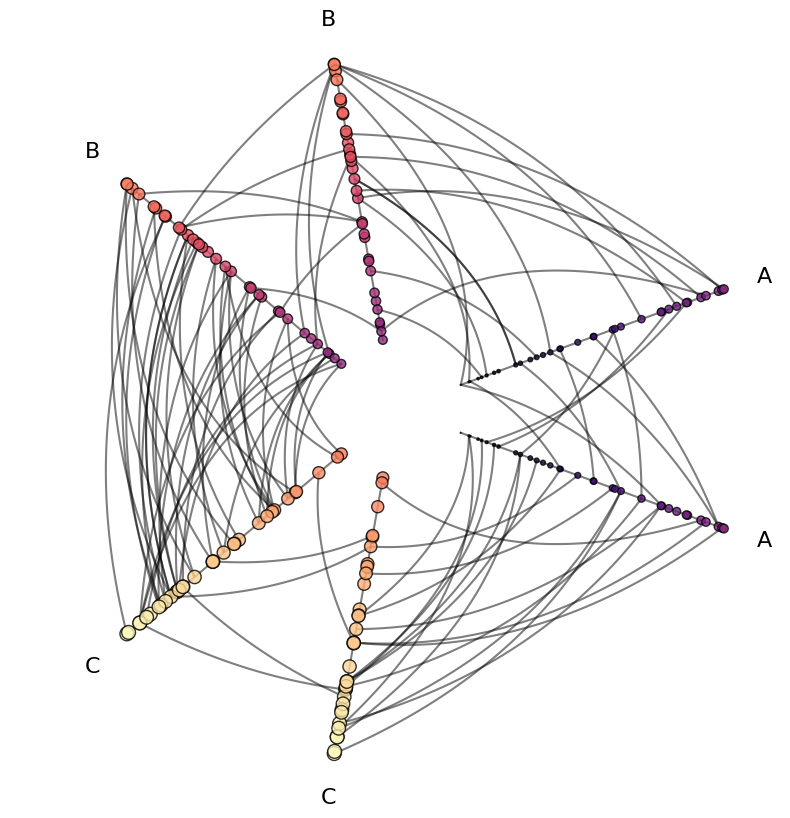
If you settle on a nice use of node metadata that you want to persist without including in every plot() call, you can instead call HivePlot.update_node_viz_kwargs(), passing along the same node plotting kwargs.
[11]:
node_kwargs = {
    "c": "low",
    "s": "size_10x",
    "cmap": "magma",
    "vmin": 0,
    "vmax": 10,
    "edgecolor": "black",
}

# this will persist for future plots
hp.update_node_viz_kwargs(**node_kwargs)

fig, ax = hp.plot()  # no node kwargs needed here
plt.show()
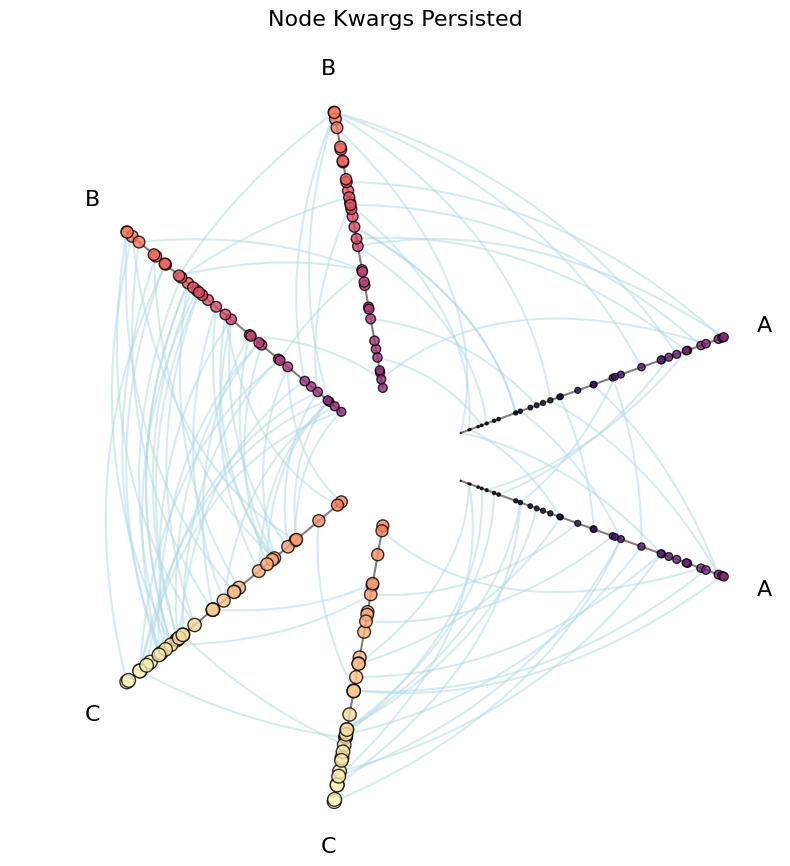
Now we can instead focus on other plotting flexibility like edge kwargs.
[12]:
fig, ax = hp.plot(color="lightblue")

ax.set_title("Node Kwargs Persisted", y=1.05, size=16)
plt.show()
There is similar functionality available when plotting edge metadata. For more information, see the Visualizing Edge Metadata page.
Visualizing Node Graph Metrics#
Graph-level metrics are also valid sources of values for node kwargs. For more on attaching graph metrics to the underlying NodeCollection, see the Computing Graph Metrics page.